

JPedal PDF Inspector: Debug & Inspect PDF File Structure
The JPedal Inspector is a free PDF debugging tool that lets you examine the internal structure of any PDF file, including its COS object tree, cross-reference tables, embedded images, raw streams, and decoded page commands. It is useful for diagnosing rendering issues, understanding how a PDF is constructed, and stepping through the commands a PDF parser executes.
Features:
- View the Cross-Reference (XRef) Tables
- Pause decoding at a specific command
- View the COS Object Tree and Internal Structure
- View images embedded in a PDF
- Decode and view PDF streams
If you do not have JPedal or the JPedal Inspector, you can download a free copy from our website.
View the contents of PDF files from the command line
If you are using the standalone JPedal Inspector jar, either double-click launcher.jar or run the following command:
java -jar launcher.jar
Otherwise, if you have a licensed copy of JPedal, pass the --inspect parameter via the command line:
java -jar jpedal.jar --inspect "inputFile.pdf"
View the cross-reference (XRef) tables
Click ‘View’ then ‘XRef Tables’ or ‘XRef Streams’. The Cross-Reference Viewer lets you browse every object listed in the PDF’s cross-reference table and cross-reference streams - the index a PDF parser uses to locate objects by offset. You may click on an object to view its contents in the right-hand pane.
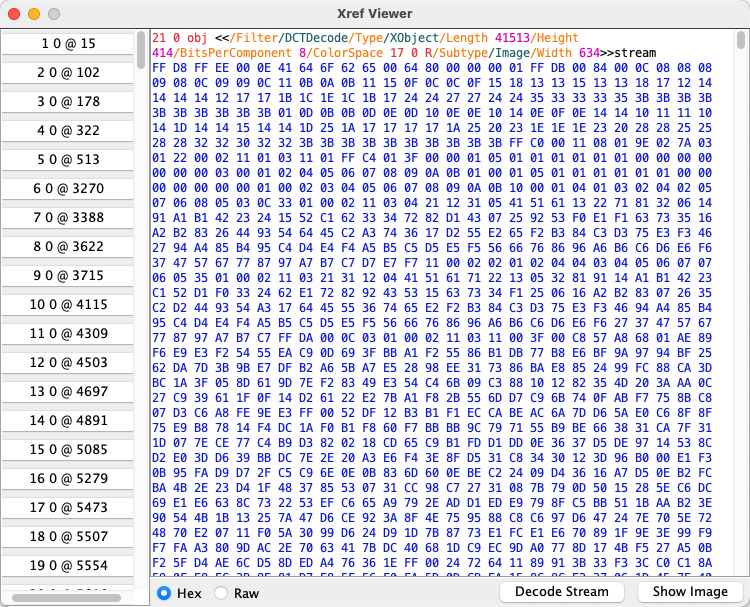
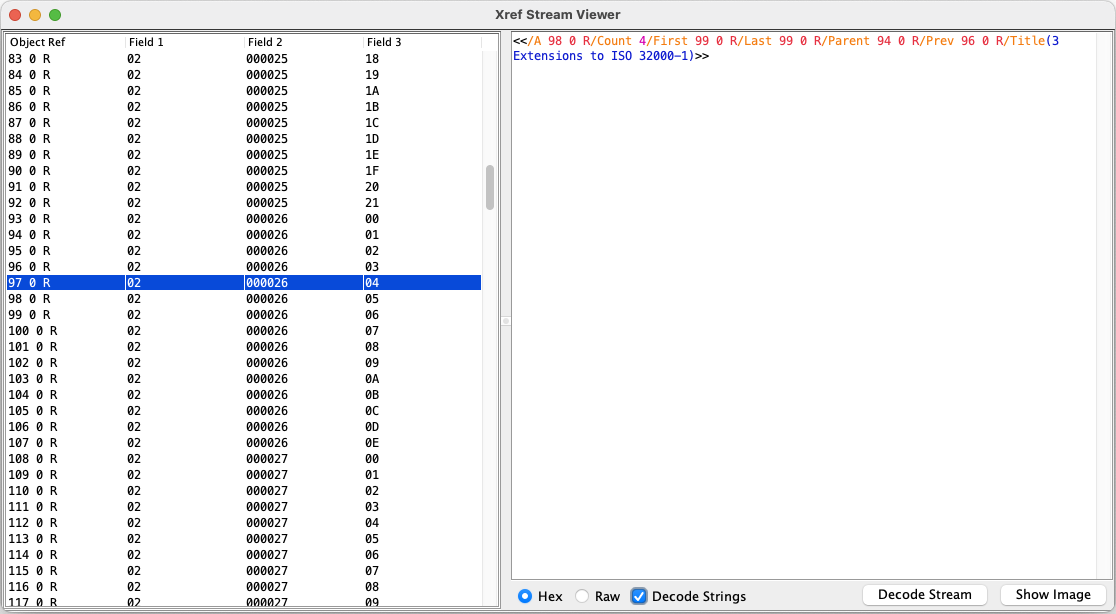
Note the ‘XRef Streams’ button may be disabled if the file does not contain cross-reference streams.
Pause decoding at a specific command
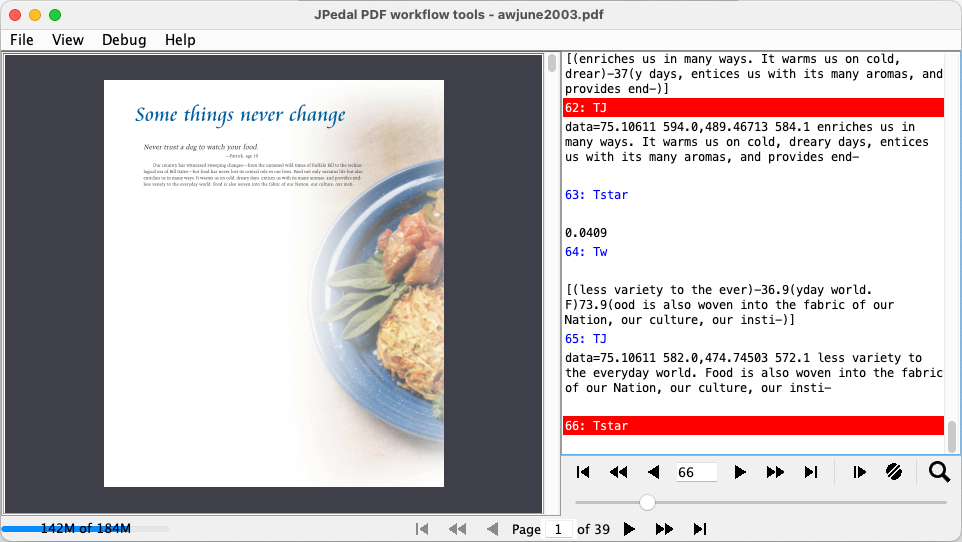
The JPedal Inspector lets you step through the render commands a PDF parser executes, making it straightforward to isolate which command causes a rendering issue. You can advance using the slider, the cassette buttons, or the text field. Each command is highlighted in blue in the right-hand pane. Any associated data is displayed above the command it came from.
You may also set breakpoints by selecting a command. Breakpoints are displayed with red boxes. The resume button underneath the command pane will advance to the next breakpoint. The button on the far right will clear all the breakpoints.
Anywhere a resources object is referenced (e.g. an XObject), you may right-click on the command to view the raw object.
View the COS object tree and internal structure
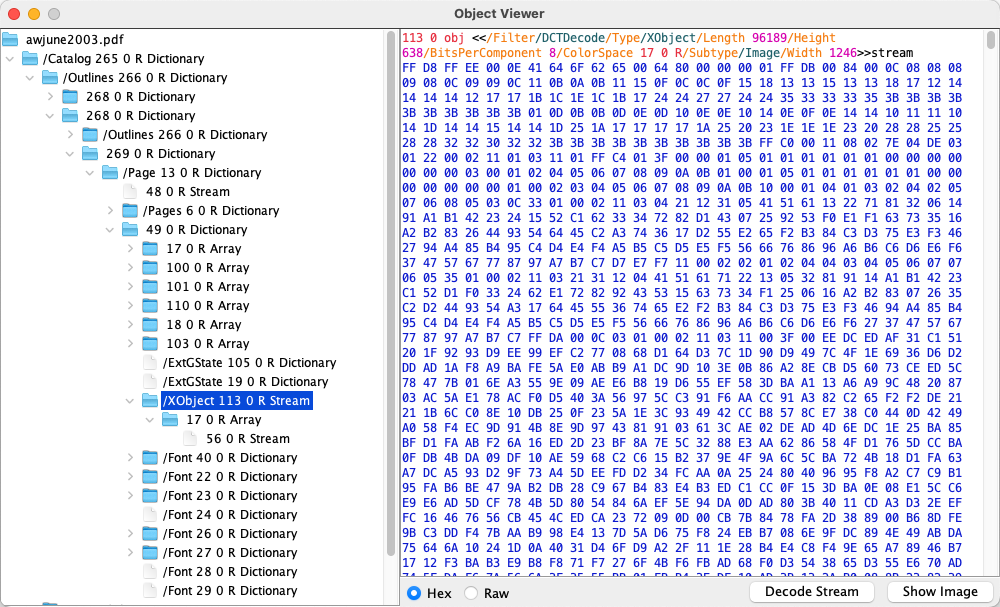
Click ‘View’ then ‘Objects Tree’. The Object Viewer lets you explore the internal structure of a PDF file and see how objects reference each other. This is useful for understanding font definitions, page resources, and document metadata. Each object in the tree displays its reference, its type, and its /Type key if it has one. You may click on an object to view its contents in the right-hand pane.
Object highlighting
When you view an object from the Cross-Reference Viewer or the Object Viewer, its contents will be highlighted. Below are the colors used and what they correspond to.
| Object | Color |
|---|---|
| Dictionary Key | Orange |
| Dictionary Value | Cyan |
| Object Reference | Red |
| Number | Purple |
| Boolean | Green |
| String | Blue |
| Hexadecimal | Blue |
View images embedded in a PDF
The JPedal Inspector lets you extract and view images embedded in a PDF, whether stored as XObjects or as inline data to an ID command.
There are three ways you can view images in the Inspector:
- Find the XObject in the Cross-Reference Viewer and press ‘Show Image’
- Find the XObject in the Object Viewer and press ‘Show Image’
- Find a DO or ID command in the command window, right-click and press ‘View Image’ or ‘View Inline Image’
Decode and view PDF streams
You can decode and view the contents of a PDF stream (including compressed or encoded data) by opening the Cross-Reference Viewer or Object Viewer and pressing ‘Decode Stream’.
Frequently Asked Questions
Is the JPedal Inspector free?
Yes. A standalone version is available as a free download from the JPedal Inspector page and does not require a JPedal license.
Can I use the Inspector without a JPedal license?
Yes. Run it via the standalone jar using command shown above. A licensed copy of JPedal is not required.
What PDF internals can I inspect?
The Inspector exposes cross-references, the full object tree, embedded images (XObjects and inline), raw and decoded streams, and the individual render commands executed when parsing the PDF.
What does “pause decoding at a specific command” mean?
PDFs contain a sequence of drawing commands that a parser executes to render each page. The Inspector lets you step through these commands one at a time so you can pinpoint exactly where a rendering problem originates. It even includes support for breakpoints.
What is the difference between the standalone jar and the licensed JPedal jar?
The standalone Inspector jar is a free tool focused entirely on PDF debugging. The licensed JPedal jar is the full PDF rendering library; passing --inspect to it opens the same Inspector interface.